Claude Desktop
Claude Desktop installs MCP servers as local stdio processes, so Eidograph's Streamable HTTP endpoint cannot be pasted into it directly. eidograph-mcpb is a small .mcpb bundle that bridges the two: it speaks stdio to Claude Desktop and forwards each request to the endpoint published in Eidograph's discovery file. Everything stays on your machine — no traffic leaves loopback unless you point it at another device yourself (see below).
Install the extension
- Download the latest
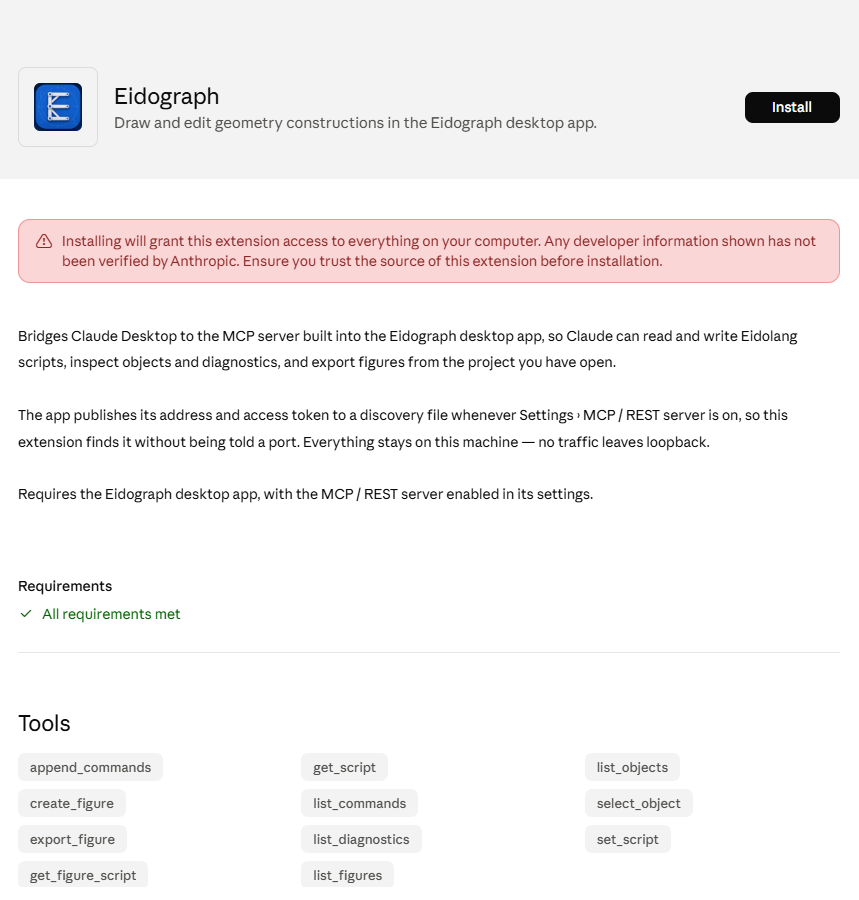
eidograph.mcpbfrom the eidograph-mcpb repository on GitHub. - Open the downloaded file, or drag it onto Claude Desktop's Settings › Extensions page. Claude Desktop shows the extension's details and an Install button:
WARNING
Claude Desktop warns that any extension can access everything on your computer — that warning is generic to all extensions. eidograph-mcpb only relays JSON-RPC between Claude Desktop and Eidograph's loopback HTTP endpoint; it does not touch the filesystem or the network beyond that.
- Click Install. Eidograph then appears in Settings › Extensions alongside your other installed extensions:
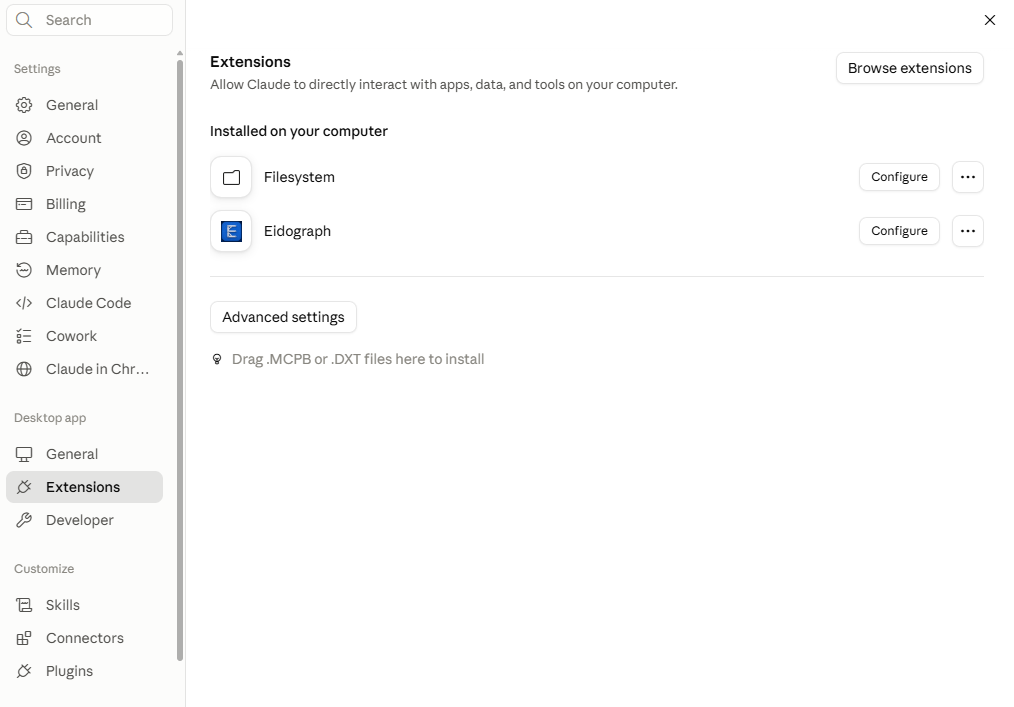
No further setup is required. The extension re-reads Eidograph's discovery file on every request, so starting the app, enabling its server, or changing its port all take effect without reinstalling or restarting anything. If Eidograph is closed or its server is off, tool calls fail with an error naming the setting to turn on.
Configure a custom server address
Click Configure next to Eidograph in the Extensions list to open its settings:
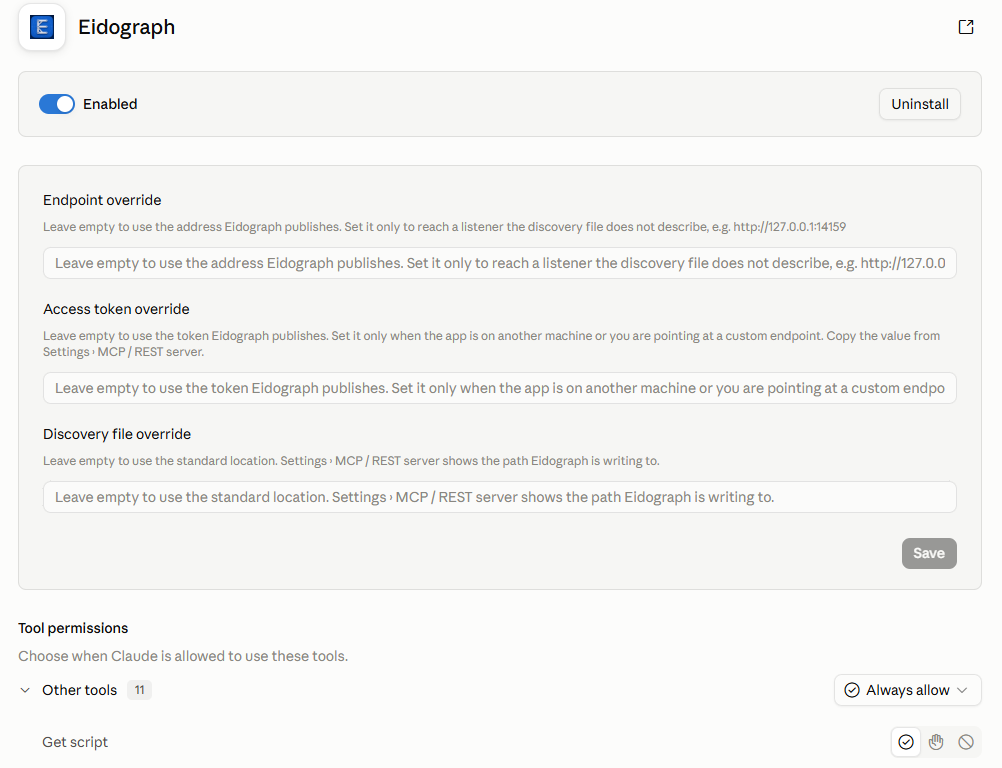
All three fields are optional, and exist only for cases the discovery file cannot cover:
| Setting | Effect |
|---|---|
| Endpoint override | Dial this address instead of the one Eidograph publishes. Accepts http://host:port or a full .../mcp URL. |
| Access token override | Send this token instead of the one Eidograph publishes. |
| Discovery file override | Read the handshake from this path instead of the standard OS location. |
This is what you need when Eidograph runs on a different device than Claude Desktop — for example the Android app on a phone or tablet, while Claude Desktop runs on your computer:
- On the device running Eidograph, open Settings › MCP / REST server and turn on Require an access token first, then LAN mode — in that order, since LAN mode accepts connections from other devices on the network.
- Note the LAN address and port shown there (for example
http://192.168.1.23:14159), and copy the access token. - Back in Claude Desktop's Eidograph configuration page, set Endpoint override to that address and Access token override to the copied token, then Save.
DANGER
LAN mode has no internet relay, but any device on that network can call the tools you enabled once it knows the address. Keep an access token on, use LAN mode only on a trusted network, and turn it off when you are done.
Uninstalling or updating
Toggle the extension off or click Uninstall from the Extensions list. To update, install a newer eidograph.mcpb the same way — Claude Desktop replaces the previous version in place.